
Why Your Laptop Charger Gets Hot


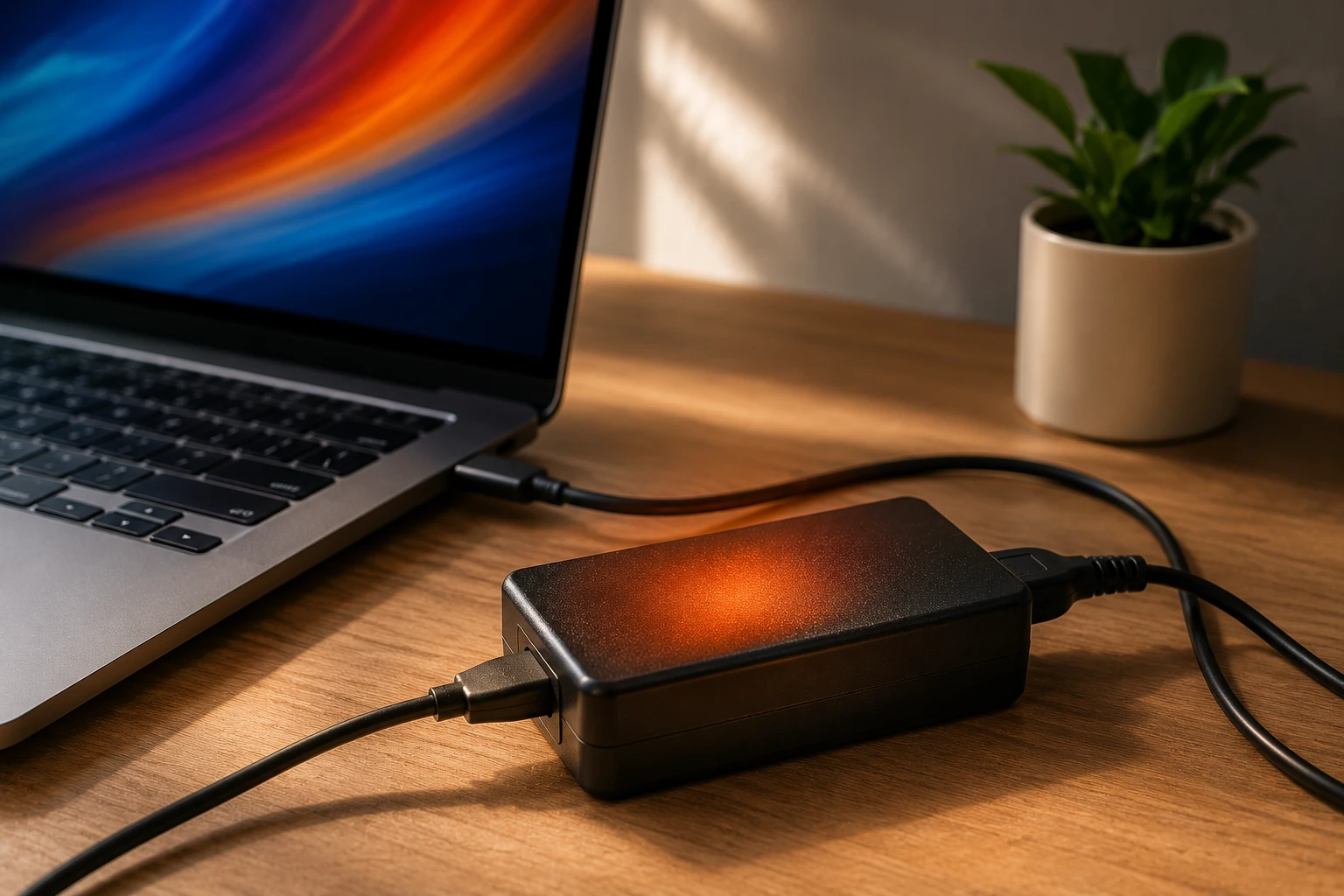
When you stop to fiddle with the charger, you notice that it’s already quite warm, as it’s a good bit hot, actually. It’s a situation that most of us who use a laptop will face at least once: Is it normal? Is the warning sign of a larger problem brewing? Or is it even dangerous?
Well, the truth is, yes, to an extent. Laptops are designed to emit heat through the charger as part of their normal operating range, however, there is a fine line between that being normal versus it becoming a major safety hazard. This is where this article will help you understand what the exact line is, what might have caused your laptop charger to overheat, and how you can take care of it.
Is It Normal for a Laptop Charger to Feel Warm?
Yes, to a certain extent. A laptop charger is effectively a power converter, taking in 230V AC from the wall outlet in the UK and reducing that to 19 to 20V DC that the laptop is designed to operate on and charge from. The conversion generates heat which is just a function of engineering.
While a charger should be warm to the touch under normal operation, not too hot for you to use like a warming hot water bottle, you should start getting concerned if it feels like it burns to hold onto, starts smelling, or gets uncomfortably hot in mere minutes of charging.
As a simple experiment, try placing your hand on the charging brick while the device is charging. If your hand can stay there for ten seconds comfortably, then chances are the device’s charging speed won’t overheat your phone. If you can’t keep your hand there for ten seconds, then you need to worry.
How Hot Is Too Hot? A Temperature Reference Guide
How hot the charger gets depends on a bunch of different factors including which laptop model it is, how many watts the charger outputs, and what the laptop is busy doing right now. A gaming laptop operating at full capacity will heat up the charger much more than a lightweight notebook just sitting in stand-by mode.
| Temperature Range | What It Means | What to Do |
|---|---|---|
| Below 40°C | Normal operating temperature | Nothing — this is expected |
| 40–50°C | Warm under active load | Fine; ensure some airflow around the brick |
| 50–60°C | Getting noticeably hot | Check ventilation, uncoil the cable |
| 60–70°C | Too hot for comfortable touch | Investigate the cause; monitor closely |
| Above 70°C | Potentially dangerous | Stop using it immediately; check for damage |
Most manufacturers will make their chargers operate safely up to about 60 to 65 degrees celsius; above that, the degradation of components will exceed what was expected, and the likelihood of it malfunctioning will increase significantly, even if that malfunction results in a catastrophic failure.
When Should You Replace Your Charger?
This is where many people wait longer than they should. Consider replacing your charger if:
- It’s more than three to four years old and running noticeably hotter than it used to
- There is any visible physical damage — to the cable, plug, or brick
- It’s a cheap, uncertified replacement without UK safety markings (look for the BS 1363 standard and the BSI Kitemark on the plug)
- It didn’t come from the manufacturer or an approved retailer
- Your laptop is charging noticeably more slowly than it once did under similar conditions
Where you buy a replacement genuinely matters. Certified UK retailers such as Currys carry manufacturer-approved chargers that meet UK safety standards — which matters more than it might seem for something drawing continuous power. For a broader catalogue of compatible chargers and laptop accessories across a wide range of models, https://zeto.ua/ is worth a look — the site carries a solid range of options and is particularly useful when you’re trying to match a specific charger to a less common laptop model.
The Most Common Reasons a Laptop Charger Overheats
Heat is not always created the same way. Some causes are easily manageable, while others indicate a serious issue.
- The cable is coiled or tightly bundled. One of the most overlooked causes. When the cable is wound into a tight loop near the brick, heat builds up with nowhere to escape. Always lay the cable out loosely during use.
- Poor ventilation around the brick. Charging on a bed, sofa, or carpet? The charger brick needs airflow on all sides. Soft fabric surfaces trap heat underneath it, and temperatures can spike quickly.
- Charging and running intensive tasks simultaneously. Video editing, gaming, or having dozens of browser tabs open while charging forces the charger to sustain maximum output for extended periods. That generates significantly more heat than light use.
- Wrong wattage charger. A third-party charger that’s underpowered for your laptop runs at 100% capacity just to keep up. This isn’t how chargers are meant to operate long-term.
- Age and internal wear. The capacitors and other components inside a charger degrade over time. An older charger often runs hotter than it did when new, even under identical conditions.
- Counterfeit or uncertified charger. Cheap, unbranded replacements — particularly those without proper UK safety markings — frequently lack adequate thermal management and can run dangerously hot from day one.
Warning Signs You Should Never Ignore
It’s understandable if you feel your charger getting a little warm. These signs, however, are much more worrying:
- Any burning smell, or any smell at all coming from the charger or cable
- Visible discolouration, melted plastic, or scorch marks around the plug, brick, or either end of the cable
- The cable feels hot along its length, not just where it meets the brick
- Sparking when the charger is plugged into the socket or into the laptop
- Your laptop battery is draining even while plugged in — a sign the charger is failing under load
- The charger cuts out intermittently and then restarts
- The wall socket itself feels warm around the plug
If any of these apply, stop using the charger, take it out of the wall, not the laptop. Do not leave it plugged in.
What to Do When Your Charger Is Running Too Hot
If your charger is clearly hotter than it should be, go through the following in order:
- Unplug it and let it cool down completely before inspecting or touching the connections.
- Examine the cable and brick carefully. Look for kinks, fraying, discolouration, or any physical deformation.
- Review how and where you’re positioning it. Move it to a hard, flat surface with clear space on all sides.
- Uncoil the cable fully and lay it flat rather than leaving it bunched near the brick.
- Check the wattage rating on your charger against your laptop’s requirements (usually on a sticker on the base of the laptop or in the manual).
- Try a different wall socket. A faulty socket can cause irregular power delivery, which puts additional strain on the charger.
- If none of the above resolves it — replace the charger. Continuing to use one that behaves abnormally isn’t worth the risk.
How to Keep Your Charger Running Safely
The majority of overheating problems are simply avoidable if you just adopt some basic preventative measures.
Only ever charge on a hard surface. Hard surfaces such as the surface of a desk, a shelf, or the floor allow heat to dissipate much better than soft surfaces such as a bed, couch, or pillow. Don’t tangle the charging cable during use. When storing your charger, coil the cable with a loose figure-eight rather than wrapping it tightly around the charger brick. Avoid long periods of heavy use where the charger is always doing a lot of work (such as hours of high-intensity productivity work). It may help to take frequent breaks so the charger doesn’t always work hard during a charging session. Avoid stacking objects on or against the charger brick while it’s in use. Your charger brick requires good airflow.